
ShoalStack is now

ShoalStack is now
This blueprint includes a virtual machine, a Docker Compose stack running a Dedicated Minecraft Server
(Java or Bedrock), and a persistent boot disk for hosting a world your friends can join.
This blueprint provides a working Minecraft server (Bedrock or Java) running on a virtual machine you control. The server starts on first boot and keeps its world on the machine's disk.
 A private server for friends and familyA starting point for a persistent survival worldA foundation for custom addons and resource packsA template for game servers on your own cloud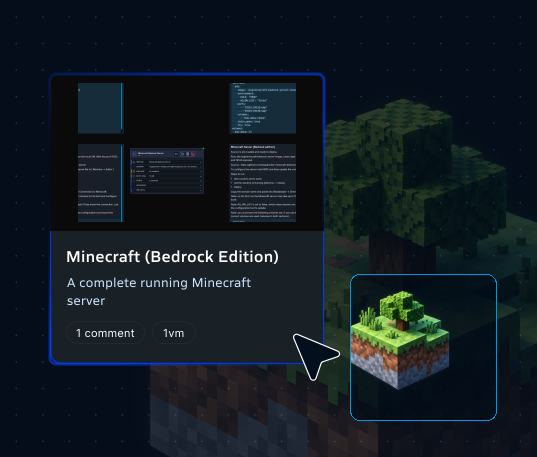
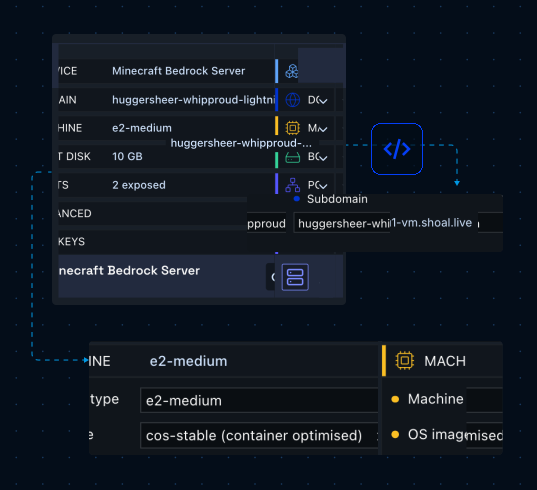
This blueprint contains a single VM node already configured to run a Minecraft server (Java or Bedrock), giving you a complete game server you can customize for your own world and settings. The machine is deployed into a GCP solution, with platform201 setting up the disk and the firewall rules.
Runs the server on a GCE-backed machine with its own subdomain. No gateway node sits in front of it.
Executes the Minecraft server container on boot. Edit the file to change server settings or pin a version.
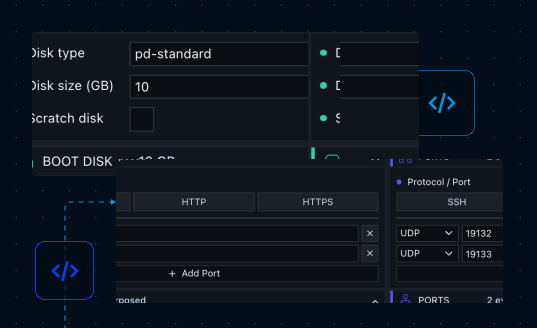
Holds the world, the server binary, and the settings file, so the world survives restarts and upgrades.
Opens the UDP port the Minecraft server listens on so players can reach it from the internet.
Use the Minecraft Server VM blueprint to run a private world, host a group of players,
or learn how a real server is administered.
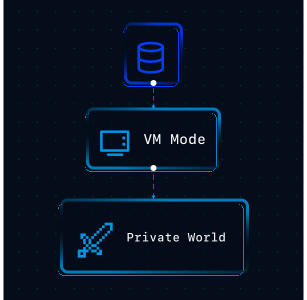
Keep a persistent world running for a small group of players.
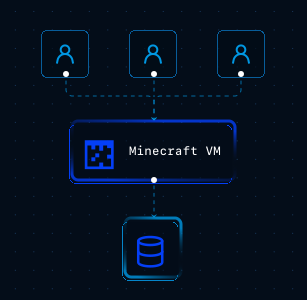
Give builders a shared space that stays up between sessions.
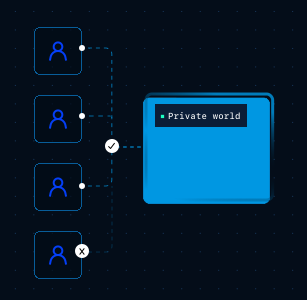
Run a closed server with an allow list of players you invite.
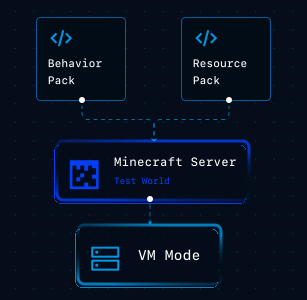
Try behavior packs and resource packs on a real server first.
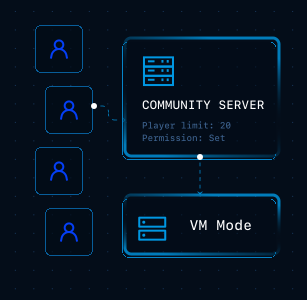
Host a wider world with player limits and permissions set.
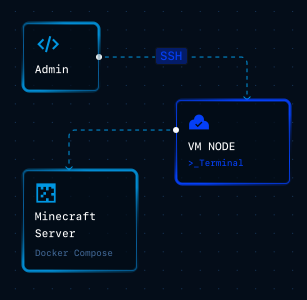
Practice running a real server with SSH access to the machine.
Move from a blank canvas to a running machine with a visual setup flow
that keeps configuration, ports, and deployment easier to manage.
Create a new project in platform201 to get started.
Open your environment and select Browse Blueprints to view available deployment templates.
Choose the Minecraft Server VM blueprint to automatically generate the machine and its configuration.
Enter the subdomain players will connect to. The machine is reachable at that address once it is running.
Pick a machine type and boot disk size to match how many players you expect and how large the world will grow.
Edit the Docker Compose file to set the server name, gamemode, difficulty, and player limit.
Click Deploy and let platform201 handle the cloud configuration, networking, and firewall rules.
Add the server in your Minecraft client using the subdomain and port, then start playing.
Once deployed, platform201 starts the machine and runs the Compose stack. The server downloads the current Minecraft release, then opens the world to the players you invite. Restarting the container picks up the newest server version, and the world on the boot disk carries across the upgrade.

Start with a working Minecraft Bedrock server, set the world and player limit to suit
your group, and deploy a machine you control without configuring Google Cloud manually.